
Precourse
If you already have R and RStudio up and running on your laptop you can skip the Preparation steps.
Preparation
Install R statistical software
Go to r-project.org and choose the link appropriate for your operating system.
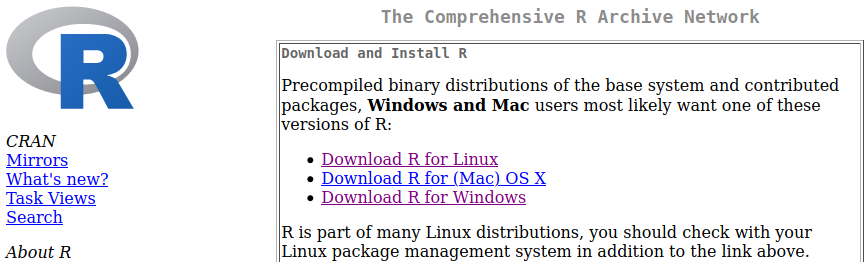
Windows: Click Download R for Windows > base > Download R X.X.X for Windows. This should download an .exe file. It is recommended that you DO NOT install to C:\Program Files\R\. Instead, install to C:\R\. It is also recommended that you install Rtools for building R packages from source code. Click Download R for Windows > Rtools.
Mac: Click Download R for (Mac) OS X > R-X.X.X.pkg that will download R to your computer. If you are not sure what version of Mac OS you are running, click the apple on the top left of your screen and select About this mac (Om den här datorn). In case you are running something older than 10.9, you should instead pick the “R-X.X.X-snowleopard.pkg” to install. Note that this will not give you the latest version of R, but it will be sufficient for most sections of the course. You can then double-click the downloaded package that will prompt you with some questions for installation details. Stick with the default settings and you should be fine.
Linux: Click Download R for Linux then pick your distribution of Linux. On most distributions, this will be via a software install system like yum or apt-get. If you run this make sure that you update your information to the installer first, otherwise you might end up installing at outdated version of R. For some systems you might need to install not only r-base, but also r-devel or you will lack important features of your R installation. When installing R packages, you might need to install OS specific packages before. These are displayed during R package installation.
Install RStudio
Go to this page and download the appropriate version of RStudio for your system.
RStudio is one of the best IDEs (Integrated Development Environments) to learn R. It provides you with tools like code editor with syntax highlighting, project management, version control, package building, debugger, profiler and more. Start up RStudio to check that everything has been installed correctly. If any issues arise we can help you fix it on the first day of the course.
You can also watch this video for an short introduction to using RStudio.
Install R packages
Please download this test_installation.Rmd file. You don’t need to understand the contents of this file yet. Open it on RStudio, and render it by clicking on the knit/render icon on the document toolbar, or by navigating to File > Knit Document.
After rendering, if everything goes well you should see this message towards end of the rendered html file:
- Congratulations you have installed all the packages.
If there are any missing packages they will be printed at the end of the rendered html file.
Install Docker
It is NOT absolutely necessary to have Docker installed, but we are working on shipping the working course as a Docker container ready to run. In order to be able to use this functionality, please make sure you have Docker Desktop installed and running on your machine.
Install git
In order to use RStudio’s version control features, install Git on your machine. This step is also NOT necessary, but to our experience learning and using git makes your life much easier.
Install Zoom
Go to Zoom website and follow installation instructions. Most likely, your University has already paid some pro plan and you should consult your local IT to get university account details.
Syllabus
The syllabus for this workshop are as follows.
- General introduction to programming and R.
- R environment and RStudio IDE.
- Data types.
- Variables and operators.
- Input/Output.
- Control structures.
- Functions and variable scope.
- Base and ggplot2 graphics.
- Overview of R package anatomy.
- Brief introduction to Tidyverse.
- Brief introduction to RMarkdown.
Learning outcomes
- Feeling comfortable while working with R in RStudio.
- Being able to read some data and perform basic data manipulation in R.
- Being able to perform some basic analysis and generate plots in R.
- Being able to generate a simple report.