Short, practical tips from NBIS staff, each shown as a 5-minute demo.
- Building ARM containers with Pixi and Wave (Mahesh Binzer-Panchal, intermediate)
- Git aliases (Cormac Kinsella, beginner)
- SSH port forwarding and jump hosts (Martin Dahlö, beginner to intermediate)
- Note taking and time logging with Obsidian (Jason Hill, beginner)
- Re-use code with snippets (Erik Fasterius, beginner)
- Fuzzy file finders (Erik Fasterius, beginner)
- Cleaning up commits with a local rebase (Erik Fasterius, intermediate)
Building ARM containers with Pixi and Wave
Mahesh Binzer-Panchal
Some HPC GPU nodes use ARM CPUs (aarch64), not x86-64. A container built for x86-64 does not run there, and most biocontainers images are x86-64 only.
You can build an ARM container without an ARM machine:
- Search for ARM packages and validate an
environment.ymlwith Pixi. - Build the image from that file with Seqera Wave.
Check ARM packages with Pixi
A failed container build costs minutes. Pixi answers in seconds and installs nothing. Add -p linux-aarch64 so Pixi checks ARM Linux even when you run it on a machine with another architecture.
Search for a package:
pixi search -c conda-forge -c bioconda -p linux-aarch64 samtoolsA match shows Subdir linux-aarch64 and the package URL. No match means no ARM build.
Write the environment you want in an environment.yml:
environment.yml
channels:
  - conda-forge
  - bioconda
dependencies:
  - samtools
  - bcftools
Import it into a throwaway Pixi workspace for ARM, then solve it with a dry run:
pixi init --import environment.yml -p linux-aarch64 check
cd check
pixi lock --dry-run
--dry-run solves the environment without writing pixi.lock or installing anything. Exit code 0 and a package list mean the build will find every package. A failure names the conflicting or missing package. Fix environment.yml here, not in a build log.
Build the image with Wave
Wave builds the image remotely, so the architecture of your machine does not matter. Install the wave CLI with Homebrew:
brew install seqeralabs/tap/wave-cliOr download a binary for your platform from the wave-cli releases and make it executable:
gh release download v1.9.0 -R seqeralabs/wave-cli -p 'wave-1.9.0-macos-arm64'
chmod +x wave-1.9.0-macos-arm64The wave-cli repository was archived on 7 October 2026. The tool has been merged into seqeralabs/wave. Installation and the wave command options may change in future releases. Check the Wave repository for the current instructions.
Pass it the validated file:
- 1
- Build with Pixi.
- 2
- Target ARM.
- 3
-
Return a permanent
community.wave.seqera.ioURI. Without it, the URI expires after about 48 hours.
-o json prints the result as JSON:
{"containerImage":"community.wave.seqera.io/library/samtools_bcftools:8dbd583e7b71dfec","succeeded":true, ...}Use the URI as the container in your Nextflow process, or apptainer pull it on the cluster. Check succeeded in the output: wave can exit 0 when the build failed.
GPU packages
GPU builds of packages such as PyTorch depend on __cuda, a virtual package that conda creates from the NVIDIA driver on the machine running the solve. Pixi on a laptop and Wave’s build hosts have no GPU, so the solve fails:
pytorch 2.1.2 would require
  └─ __cuda *, for which no candidates were found.
The CUDA libraries are ordinary conda packages and go in the image. The driver comes from the host at run time (apptainer --nv).
Declare the CUDA version on the platform to make the dry run pass. Replace check/pixi.toml with:
pixi.toml
[workspace]
name = "gpu"
channels = ["conda-forge"]
platforms = [{ name = "linux-aarch64-cuda", platform = "linux-aarch64", cuda = "12" }]

[dependencies]
pytorch-gpu = "*"
Wave’s --conda-file build cannot set this, and its Pixi template fails on __cuda. Build from a Dockerfile instead, next to the validated pixi.toml:
Dockerfile
FROM ghcr.io/prefix-dev/pixi:latest
1ENV CONDA_OVERRIDE_CUDA=12
WORKDIR /app
COPY pixi.toml .
RUN pixi install
RUN pixi shell-hook > /shell-hook.sh && echo 'exec "$@"' >> /shell-hook.sh
ENTRYPOINT ["/bin/bash", "/shell-hook.sh"]- 1
-
Let
pixi installrun on a build host without a GPU.
wave \
  -f Dockerfile \
  --context . \
  --platform linux/arm64 \
  --freeze \
  --await \
-o jsonIf you can build images locally with Docker, you do not need Wave for a Dockerfile build:
docker build --platform linux/arm64 -t gpu-image .On an x86-64 machine Docker emulates ARM, which is slower. Wave builds natively and has no setup, but limits a build to 15 minutes.
Key takeaways
pixi search -p linux-aarch64shows whether a package exists for ARM, andpixi lock --dry-runshows whether your environment solves, in seconds and without installing anything.--freezemakes a Wave image URI permanent.- GPU environments fail to solve on a machine without a GPU because the
__cudavirtual package is missing. Declarecudaon the Pixi platform to fix the solve.
Further resources
- Wave CLI (archived; README and releases)
- Pixi documentation
- Fast, reproducible CUDA development and packaging with Pixi
Git aliases
Cormac Kinsella
If you regularly find yourself typing out full git commands, or complex commands, save time by creating git aliases.
Basic aliases
For example, instead of typing git status, you can create an alias git st to run the same command. This would be done by running:
git config --global alias.st statusOr by editing the ~/.gitconfig file directly.
~/.gitconfig
[alias]
    st = status
Simplifying complex commands
As an example, git log output gives a lot of information which we may not want every time.
You can modify the output of git log to show a more concise, readable view of the commit history, and store that as an alias.
~/.gitconfig
[alias]
    l = log --oneline --graph -n 20
Create missing commands
If you find yourself needing a command that doesn’t exist, you can create it as an alias. The example from git’s own documentation is git unstage.
git config --global alias.unstage 'reset HEAD --'Which makes these two commands equivalent:
git unstage fileA
git reset HEAD -- fileA
Store git itself as an alias
You can even store git itself as a shell alias, so that you can type g instead of git. Add this line to your ~/.bashrc or ~/.aliases dotfile so it persists across sessions:
alias g=gitTab completion of branch names and git commands/aliases doesn’t work for g by default.
To restore it in bash, add this to your ~/.bashrc also:
if ! type __git_complete &>/dev/null; then
    source /usr/share/bash-completion/completions/git 2>/dev/null # Eager load git completion
fi

type __git_complete &>/dev/null && __git_complete g __git_main # Allow g alias to tab complete
The completion script path above is for Ubuntu/Debian. Other systems install it elsewhere (e.g. Homebrew on macOS uses $(brew --prefix)/etc/bash_completion.d/git-completion.bash).
Key takeaways
git config --global alias.<name> '<command>'saves a git command under a shorter name in~/.gitconfig.alias g=gitin a dotfile shortensgititself, but you must add the completion lines to keep tab completion.
Further resources
- Git aliases in the Pro Git book
SSH port forwarding and jump hosts
Martin Dahlö
Jupyter and other web apps running on a HPC cluster (or any other server) listen on a port on a remote machine. Unless the server’s firewall is configured to allow traffic to that port, your browser cannot reach that port directly. You can use either ThinLinc or X11 forwarding to run a browser on the server, but that is slow and clunky. Using port forwarding over SSH solves this problem by carrying the traffic for you using the -L argument.
ssh -L local_port:target_host:target_port
forwards a local_port on your computer to target_host:target_port. The ssh server you log in to resolves target_host. The forwarding lasts as long as this ssh connection is running.
The demo setup: Jupyter runs on port 8888, first on the login node and then on compute node p53 of the UPPMAX HPC cluster Pelle.
1. -L: notebook on the login node
On your computer:
ssh -L 8888:localhost:8888 username@pelle.uppmax.uu.seOn the login node:
module load JupyterNotebook
jupyter notebook --no-browser --port 8888
Open http://localhost:8888 and paste the token from the Jupyter output.
localhost in -L means “localhost as seen from the login node”, not your computer.
Do not run heavy work on the login node. Other users may already use port 8888. Pick a less common port, for example 8890–9999.
2. -L: let the login node forward to the compute node
If you want to run Jupyter on a compute node, you have to forward the port to that node. The login node can reach p53, so you can forward a port from your computer to p53 through the login node.
On your computer:
ssh -L 8888:p53:8888 username@pelle.uppmax.uu.seThe login node opens the connection to p53:8888 for you.
This only works if Jupyter listens on the network interface of p53, not only on localhost:
On p53:
module load JupyterNotebook
jupyter notebook --no-browser --ip 0.0.0.0 --port 8888With --ip 0.0.0.0, anyone on the cluster can reach the notebook. Only the token protects it. Without this option (the default case) only users who are logged in on the compute node can reach the port.
2.5. -J: ssh straight to the compute node
Using ssh -J user@jump_host user@final_host connects to the final_host through jump_host. This saves you from having to ssh first to the login node and then to the compute node.
ssh -J username@pelle.uppmax.uu.se username@p53SSH connects to the login node, then from there to p53. You get a shell on p53 in one command. The login node resolves the name p53, so the short name works.
3. -J + -L: forward a port to the compute node
Ok, both of them together. Forward a port from your computer to p53 through the login node.
On your computer:
ssh -J username@pelle.uppmax.uu.se -L 8888:localhost:8888 username@p53On p53:
module load JupyterNotebook
jupyter notebook --no-browser --port 8888
The final ssh server is now p53, so localhost is resolved by p53. Jupyter can keep its default and listen only on localhost, which no other user can reach over the network.
Bonus: view an HTML report without downloading it
MultiQC, FastQC and Quarto reports are just HTML files. Serve the folder using Python’s small web server.
On the login node or p53:
# in the folder with the report
python3 -m http.server 8888 --bind 127.0.0.1
Forward the port as in option 1 (login node) or 3 (p53).
On your computer:
# option 1 (web server on login node)
ssh -L 8888:localhost:8888 username@pelle.uppmax.uu.se

# option 3 (web server on p53)
ssh -J username@pelle.uppmax.uu.se -L 8888:localhost:8888 username@p53
Open http://localhost:8888/multiqc_report.html.
The same pattern works for any web app on the login node or a compute node, such as Shiny or RStudio Server. Only the port changes.
Key takeaways
- In
-L A:host:B, the machine you ssh to resolveshost, solocalhostmeans that machine, not yours. - In option 2, Jupyter needs
--ip 0.0.0.0so the login node can reach it. In option 3 the final ssh server resolveslocalhost, so Jupyter keeps its default and no other user can reach it.
Further resources
man ssh, see-Land-J- Introduction to SSH Config and Tunneling, to save these options in
~/.ssh/config
Note taking and time logging with Obsidian
Jason Hill
Obsidian is a free, proprietary editor for a folder of Markdown files. Markdown is plain-text formatting (# for headings, * for emphasis) that you will know from GitHub READMEs. Your notes stay on your machine. If Obsidian disappears, you keep plain-text files that any other tool can read.
Link your notes
Link to a note with double brackets, [[SSH port forwarding]]. Clicking a link to a note that does not exist yet creates it.
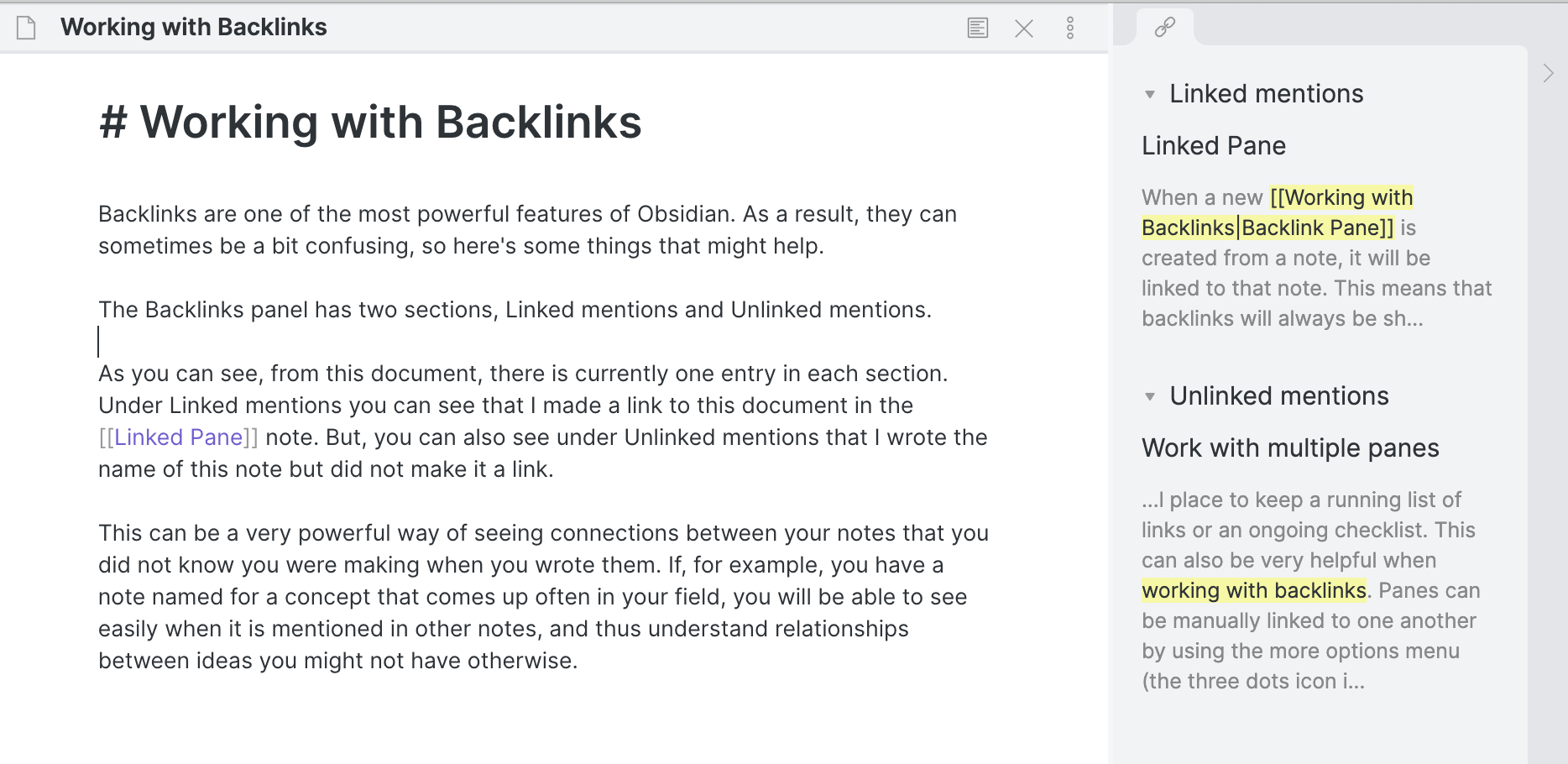
Each note also lists the notes that link to it (backlinks), shown in the right-hand panel.
Graph view draws all your notes and their links as a network. Linking a concept, such as a single-cell analysis step, lets you jump to every project that used it.
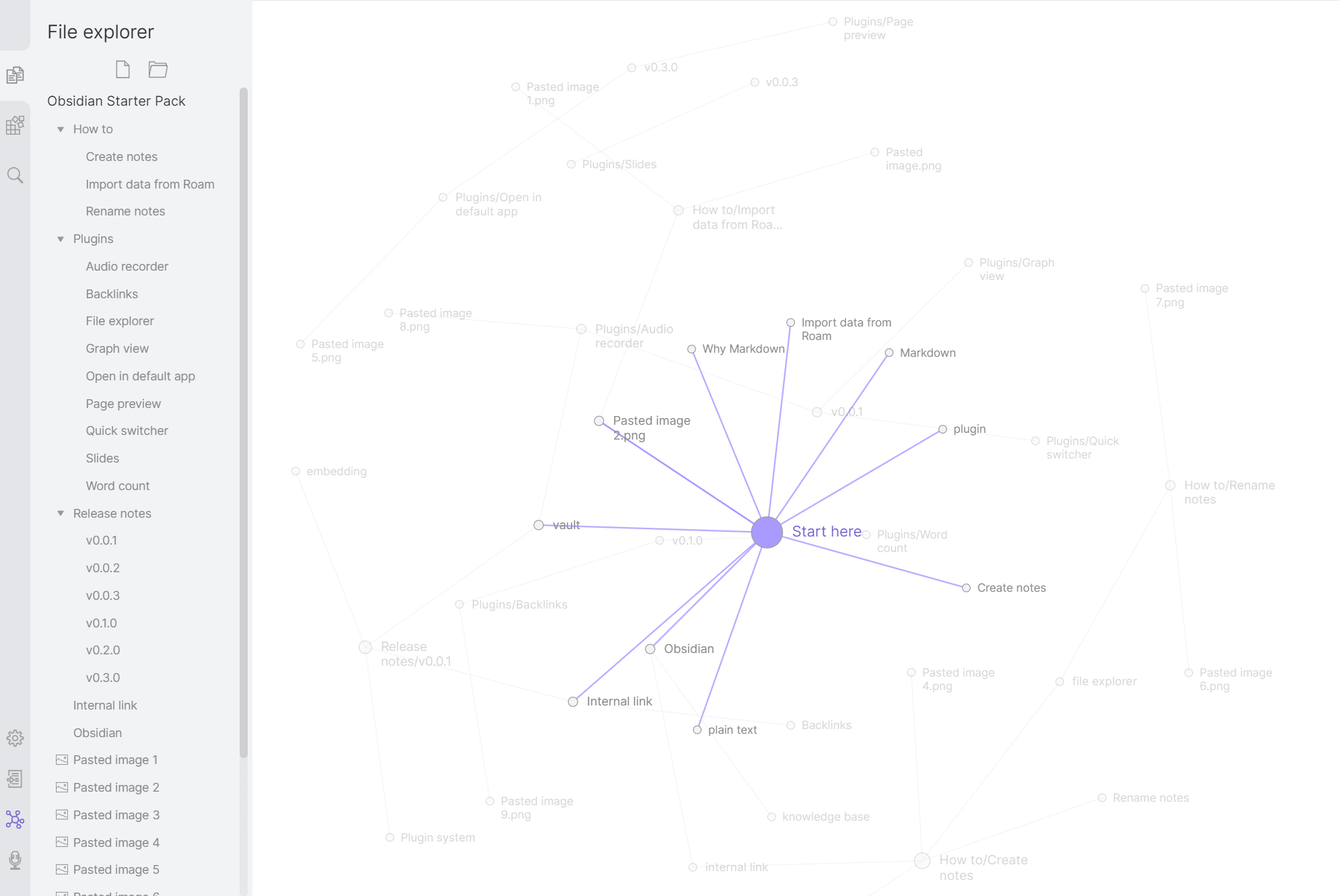
Obsidian suggests one folder of notes organised by links. Folders work too.
Extend with plugins
Thousands of community plugins add features, from local LLM integration to plotting. The core features cover most daily use.
Log your time in a daily note
A daily note template holds a journal, a to-do list and a task log. Each journal entry records its project and hours as inline fields:
## Journal Entries
- Annotate the genome [project:: Conifers] [hours:: 2]
The Dataview plugin reads these fields. A weekly report note sums the hours per project for the current week:
```dataview
TABLE sum(rows.L.hours) AS "Total Hours"
FROM "01_Daily"
FLATTEN file.lists AS L
WHERE L.project AND L.hours
WHERE file.day >= date(sow)
GROUP BY L.project
```
01_Daily is the folder that holds the daily notes. The template took about ten minutes to set up.
Key takeaways
- Obsidian keeps notes as local Markdown files, so you own your data and can move it to another tool.
[[double brackets]]link notes, and backlinks and graph view show how they connect.- A daily note template plus the Dataview plugin turns time logging into a weekly report.
Further resources
Re-use code with snippets
Erik Fasterius
When you find yourself having to re-type similar or even identical code, that’s a good time to think about converting it into a snippet: a piece of code that you can easily re-use without having to type it all out. It can be anything you desire: a function, a skeleton for some particular file type, or a module import. A snippet is a sort of template, triggered by a keyword or prefix, which expands into the full code. Snippets are available in different formats and styles for a lot of editors, and most let you define your own in addition to having built-in ones. For example, the following defines a snippet named chunk for use in Quarto documents:
snippet chunk "Create an empty Quarto code chunk"
    ```${1:r}
    ${2}
    ```
When triggered, it expands into this:
```{r}

```
After expansion, the cursor will be on the r, which was the first placeholder ($1), for which the default value was r. The second placeholder had no default value; it’s usually possible to move between placeholders with a key, like TAB and Shift + TAB.
There’s no limit to how big a snippet can be; the following is a skeleton for writing a multi-stage, Pixi-based Dockerfile:
snippet dockerfile-pixi "Initialise a new Dockerfile with Pixi"
    #
    # First stage: Build Pixi environment
    #
    FROM ghcr.io/prefix-dev/pixi:0.53.0 AS build
    LABEL org.opencontainers.image.authors="name.surname@google.com"
    LABEL org.opencontainers.image.description="Dockerfile for my_project"

    # Copy the environment toml
    COPY pixi.toml pixi.lock /

    # Install the Pixi environment as 'default'
    RUN pixi install

    # Create the shell-hook bash script that will activate the environment
    RUN pixi shell-hook > /shell-hook.sh

    # Extend the shell-hook script to run the command passed to at run-time
    RUN echo 'exec "\$@"' >> /shell-hook.sh

    #
    # Second stage: final image
    #
    FROM ubuntu:22.04 AS work
    WORKDIR /work

    # Copy over environment and shell-hook script from build stage
    COPY --from=build /.pixi/envs/default /.pixi/envs/default
    COPY --from=build /shell-hook.sh /shell-hook.sh

    # Activate the Pixi environment when running the container
    ENTRYPOINT ["/bin/bash", "/shell-hook.sh"]
    CMD /bin/bash
Key takeaways
- A snippet expands a short keyword into a template, and placeholders let you tab through the parts to fill in.
- A snippet can be as small as a code chunk or as large as a whole Dockerfile.
Further resources
Finding files with a fuzzy finder
Erik Fasterius
Clicking around in a file tree or typing an exact path from memory is slow, especially in a large repository. A fuzzy finder (like fzf) matches a search string against a list of candidates (e.g. files, shell history, branches, running processes) by how well the characters fit, not by exact substring position. For example, launching fzf will provide you with a prompt:
▌ posts/2026-09-10-nf-test-nextflow-testing-framework/index.qmd
▌ .quarto/idx/posts/2026-03-12-github-pull-requests-code-review/index.qmd.json
▌ posts/2026-03-12-github-pull-requests-code-review/index.qmd
▌ .quarto/idx/posts/2026-02-12-working-with-R-packages/index.qmd.json
▌ posts/2026-02-12-working-with-R-packages/index.qmd
▌ posts/2026-06-11-blender-intro/index.qmd
▌ .quarto/idx/posts/2026-01-22-github-actions/index.qmd.json
▌ posts/2026-01-22-github-actions/index.qmd
  8/289 ──────────────────────────────────────────────────────────────────────
> 202601qmd
As the typing happens, the results will get more and more narrow: when 2026 is finished you’ll only see files with 2026 in the name; adding 01 narrows it down to January, and the qmd gets us the final result shown above. We could even skip some characters: doing 2601qmd gets us the same results.
Selecting a result sends it to the standard output, so you usually want to combine it with a command:
cat $(fzf)Additionally the fzf software easily plugs into the history search in bash (which is Ctrl + R by default), which makes searching through your bash history even easier.
A lot of editors already have fuzzy search functionality built-in: for example, in VSCode you can type [Cmd/Ctrl] + P to jump straight into the fuzzy finding prompt and type away.
Key takeaways
fzfnarrows a list as you type and matches characters that are not next to each other, so partial and misspelled input still finds the file.fzfplugs into bash history search (Ctrl + R), and many editors have a built-in fuzzy finder.
Further resources
Cleaning up commits with a local rebase
Erik Fasterius
Git histories can get a bit messy when one is solving a problem, possibly with experimentation, “WIP” messages and commits that only fix spelling mistakes or formatting. For example, a small history from a feature branch:
git log --oneline0abf162 First feature commit
befc682 A minor change on the first commit
c9d1426 A commit with an incomplete commit message
2e0cb97 A commit with a spelling mitakeSome of these are highly related to each other and might actually be better suited as a single commit. Let’s say that you’ve also spotted a spelling error in one commit message, and realised that you missed important information in another. We can actually solve all of these issues with an interactive rebase!
git rebase -i HEAD~4This command initiates an interactive rebase using the four commits back from HEAD. This will open your default editor with something like the following:
pick 0abf162 First feature commit
pick befc682 A minor change on the first commit
pick c9d1426 A commit with an incomplete commit message
pick 2e0cb97 A commit with a spelling mitake

# Rebase 879ddcc..0abf162 onto 879ddcc (4 commands)
#
# Commands:
# p, pick <commit> = use commit
# r, reword <commit> = use commit, but edit the commit message
# e, edit <commit> = use commit, but stop for amending
# s, squash <commit> = use commit, but meld into previous commit
# f, fixup [-C | -c] <commit> = like "squash" but keep only the previous
#                    commit's log message, unless -C is used, in which case
#                    keep only this commit's message; -c is same as -C but
#                    opens the editor

(... more instructions ...)
The commits are ordered with the most recent one at the bottom. The commented instructions (all of which are not shown here) show you what alternatives you have to work with; all you have to do is to change the pick keyword next to the commit hashes to whatever keyword you need from the list, save and exit.
In order to solve the toy example here we might decide that the four keywords should be pick, squash, reword and reword, from top to bottom; if just want to add the second commits’ content to the first one while using only the first one’s commit message we could use fixup instead. Once that’s done simply save and exit, and another instance of your default text editor will open for you to complete the specified changes. In the case above we’d get two separate new instances where we can change the commit message - these work the same as any normal commit.
Rebasing rewrites commit hashes. Only rebase commits that haven’t been pushed yet, or that no one else has already built work on - otherwise your history and theirs diverge.
Interactive rebasing is thus well-suited for fixing and cleaning of local changes you have yet to push anywhere. This can make your Git history both cleaner and more concise, which is great when you’re collaborating with others.
Key takeaways
git rebase -i HEAD~Nlets you reword, squash or fix up the last N commits.- Rebase only commits you have not pushed. Rebasing rewrites commit hashes.