Version control with git

RaukR 2026 • Data Science With R

Nina Norgren

18-Aug-2026

What is this git? And how does it work?

What is git?


  • A widely used system for distributed version control
  • Keeps a complete history of the changes you make to your files
  • Each point in the history can be re-visited and compared with others
  • Git tracks who contributed what to your code
  • Git can help you version, backup and share your code and documents
  • Kind of like Dropbox, but you decide when each version is saved (plus a lot of more advanced features)
  • Git is mainly used for text files, not large or binary files

Why should I use it?


“My code worked yesterday, now it’s broken!”


Revert to a previous version

Why should I use it?


“I forgot what and why I changed something in the code”


Check the git history

Why should I use it?


“Several people have done changes to the same code, how do I solve this?”


Let git try to merge it

What is the difference between git and GitHub?


Git:

  • Version control software
  • Works locally on your computer

GitHub:

  • Website for sharing Git repositories
  • Collaboration platform

The basics

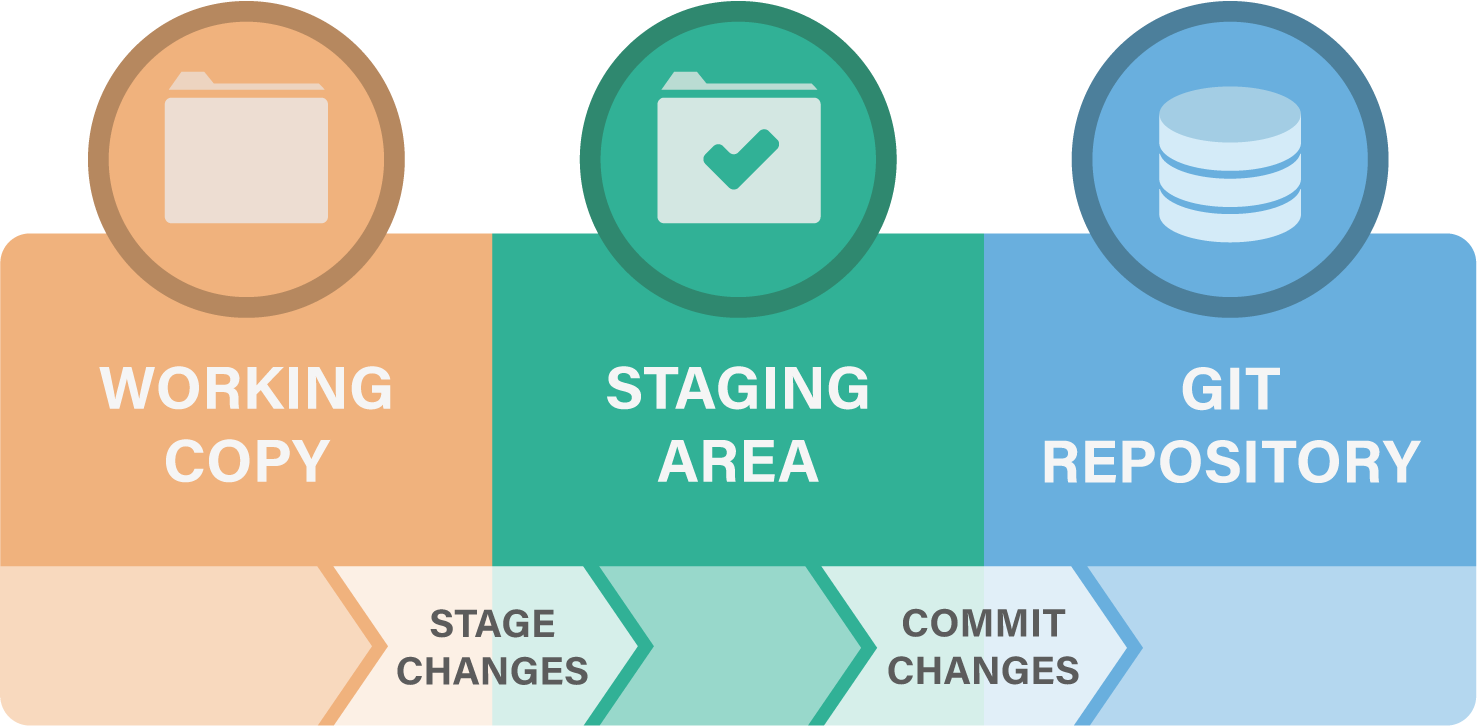
Tracking code in three steps


  1. Do some coding (i.e. make or change contents of files)
  2. Stage the changes (i.e. specify which changes should be stored)
  3. Commit the changes (storing them in the repository’s history)

Interacting with git
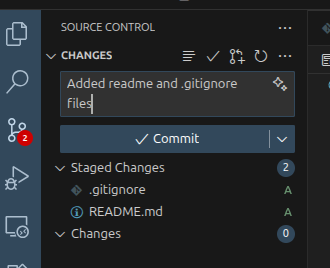
From the command line

git init
git add
git commit
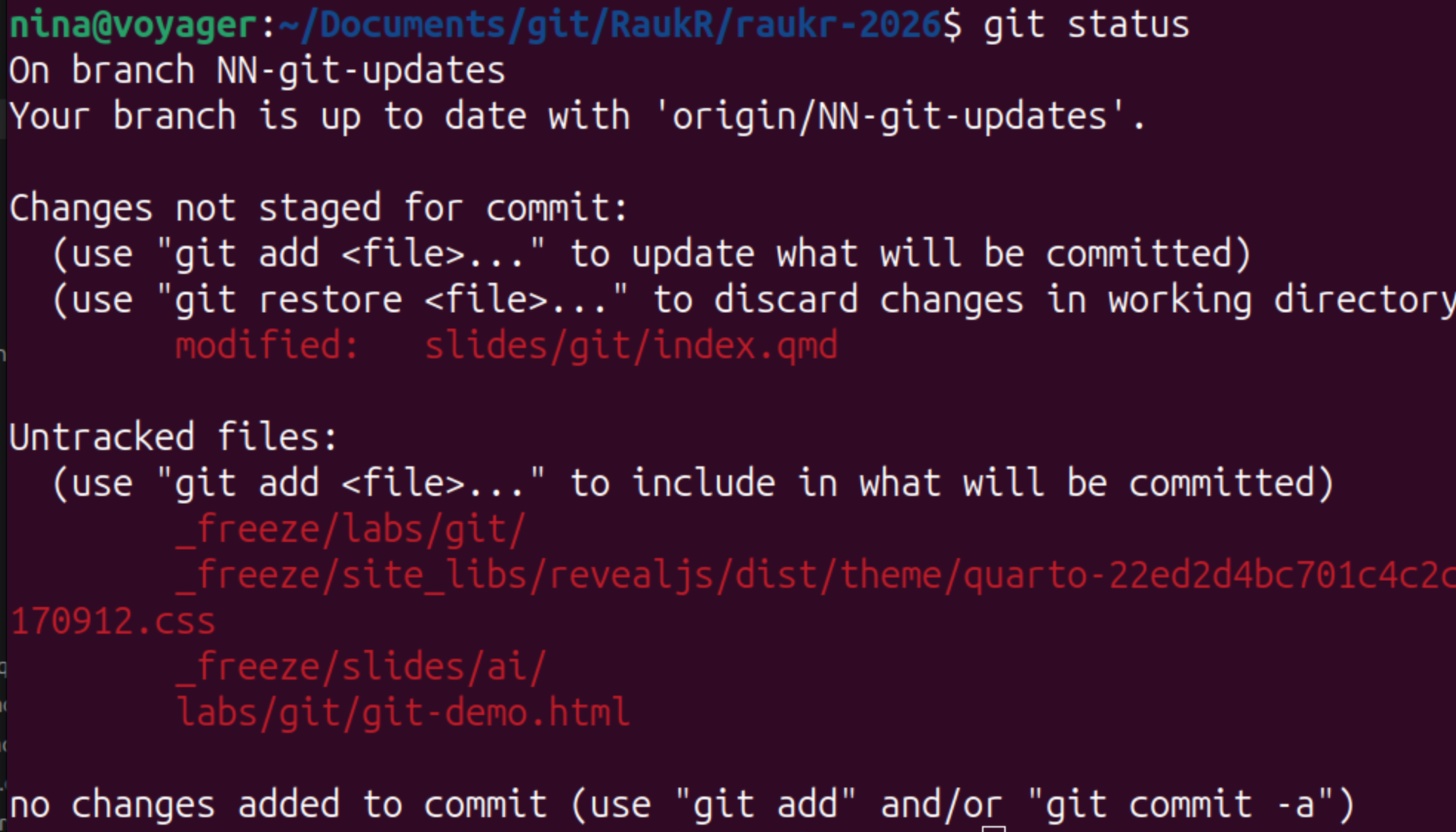
git status 

Through Positron

Note

Everything git knows lives inside .git/. Delete that folder and you have plain files again; the rest of your project is untouched.

Knowing where you are

Three commands you’ll use constantly


  • git status - what’s changed, and what’s staged
  • git diff - line by line, what exactly changed
  • git log - the history of commits so far


When you’re confused, run git status. It almost always tells you the next move.

Three commands you’ll use constantly


Example

What not to track through git


  • Large or binary files - git stores a full copy of every version, so the repo balloons (see Git LFS if you must)
  • Generated output - anything you can re-create by re-running code
  • Secrets - API keys, passwords, tokens. Git history is forever; a leaked key in an old commit is still leaked.
  • Data - often too big, sometimes sensitive. Track the code that produces results, not the results.
  • Junk file - or rather files being produced by software and analysis, e.g. .Rhistory, .RData

.gitignore

List file patterns that should not be tracked in a file called .gitignore:

# R session junk
.Rhistory
.Rproj.user/

# Rendered output
*_files/

# Data and secrets — keep these out of git!
data/*.csv

Important

.gitignore only stops git from tracking files it isn’t already tracking. Once committed, a file keeps being tracked until you explicitly remove it.

Working on parallel lines: branches

Why do we use branches?


  • Test out a new analysis
  • Try a full re-write of something
  • Two collaborators working on the same project


Workflow:

  1. Create a branch from main
  2. Do you changes and commit them
  3. Once you are done, merge the branch back into main

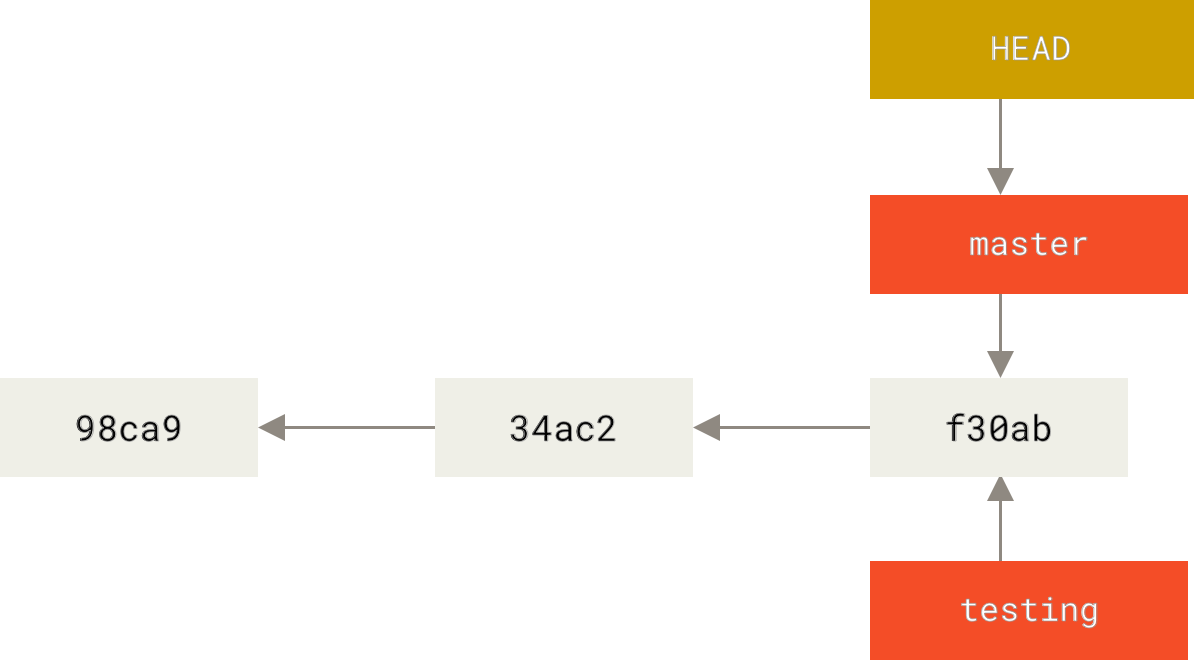
What is a branch, really?

A branch is just a movable pointer to a commit, nothing more than a 41-byte file.


  • Commits form a chain, each pointing back to its parent
  • A branch is a label pointing at the latest commit on a line of work
  • HEAD is a pointer to the branch you’re currently on

What is a branch, really?
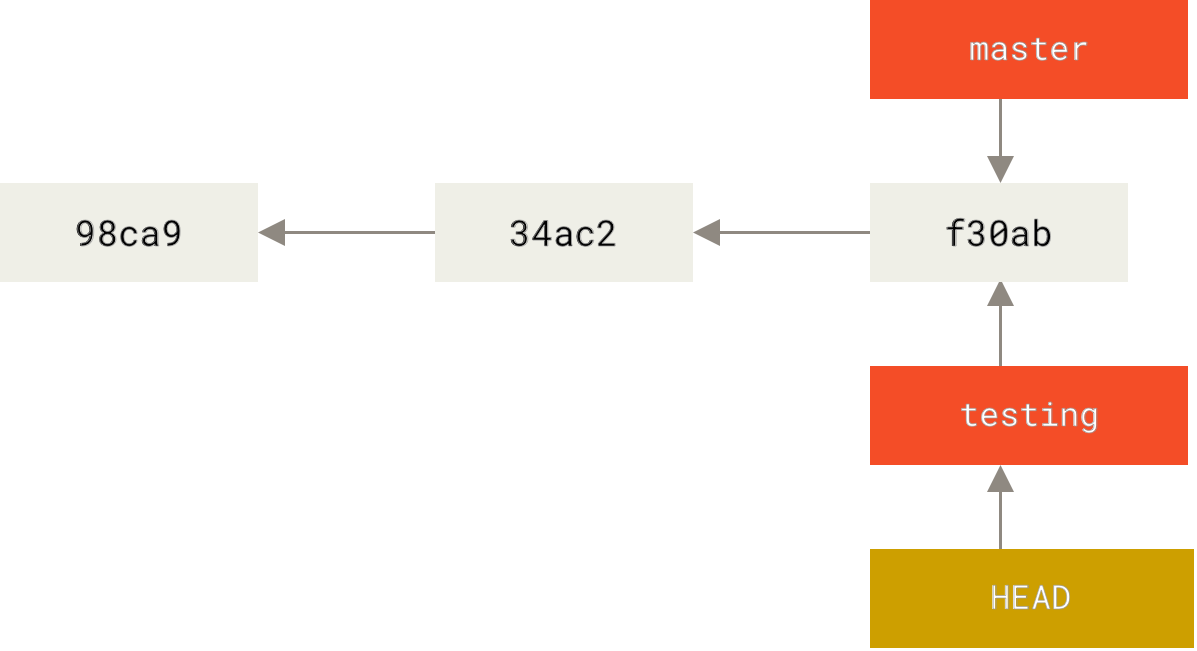

  • Changing branches moves HEAD to point to that branch

What is a branch, really?
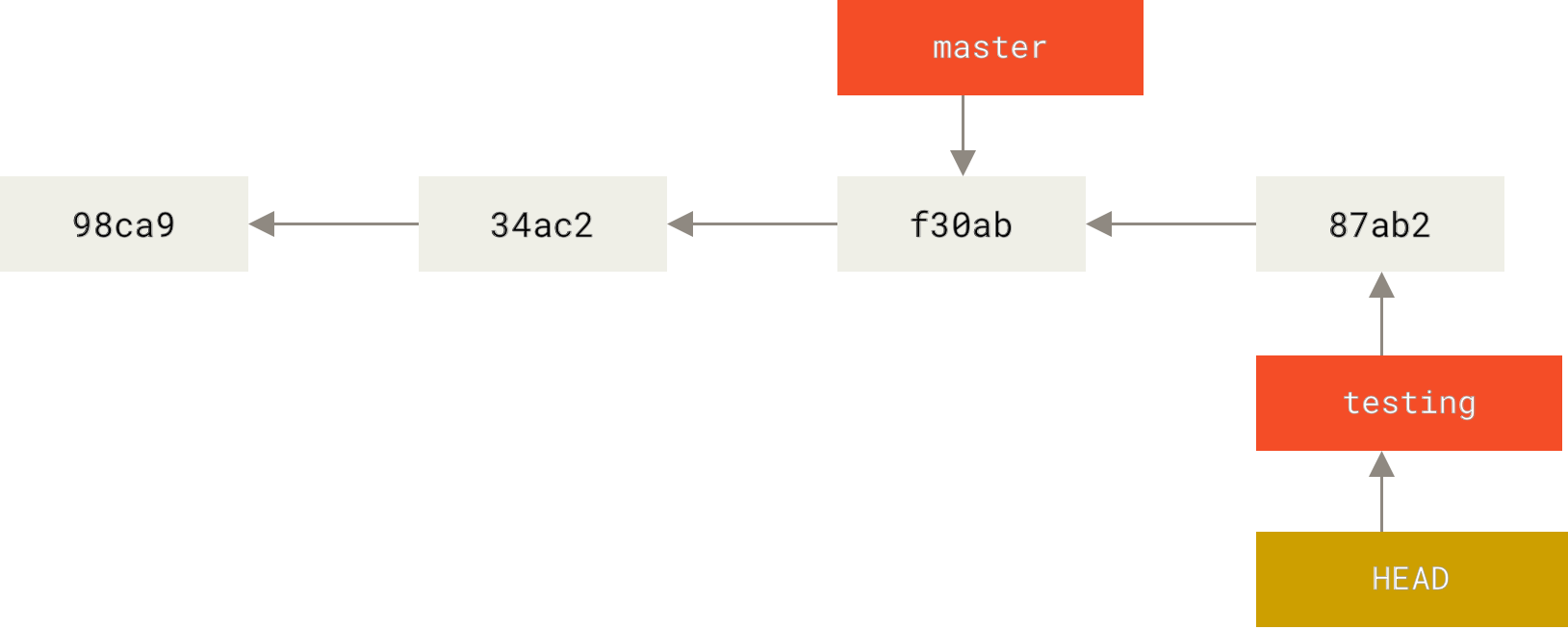

  • Making a commit moves the current branch pointer forward one step

Create and switch to a new branch


git switch -c new-feature   # create a branch and move onto it
git switch main             # hop back to main
git branch                  # list branches; * marks the current one

Merging


Bring the work from one branch into another:

git switch main
git merge new-feature


  • If main hasn’t moved, git just slides its pointer forward, a fast-forward
  • If both branches have new commits, git creates a merge commit merging the two histories together

When the same lines changed: conflicts


If two branches changed the same lines, git can’t decide, it pauses and asks you:

<<<<<<< HEAD
result <- mean(x)
=======
result <- median(x)
>>>>>>> new-feature


Edit the file to the version you want, delete the <<</===/>>> markers, then:

git add <file>
git commit

git summary


  • git is a system for version control, works locally on your computer
  • Keeps track of changes to your files
  • A git repository is a .git folder containing all information
  • Create a repository with git init
  • Add files by staging and commiting them (git add, git commit)
  • Each commit adds to the commit history
  • Use .gitignore file to prevent git from tracking files (large files, binary, data, junk files)

git summary


  • A branch is a pointer to a commit
  • Use branches to test out new features, then merge back into main
  • git tries to merge branches automatically, merge conflicts happen when that is not possible

Github

Local versus remote

Why bother with GitHub?


git already works perfectly well on your own machine. So why use Github?


  • Backup: your history lives somewhere other than your laptop
  • Sharing: send a collaborator a link instead of zipping and emailing folders
  • Collaboration: several people work on the same project
  • Reproducibility: “code available at github.com/…” is now standard in papers; reviewers and readers can see exactly what you did
  • DOI: You can get a citable DOI for a release (via Zenodo)
  • It’s free: repositories cost nothing, and you get issue tracking, a project website, etc.

GitHub is just a remote copy

GitHub doesn’t do anything mysterious. A GitHub repository is just another git repository, hosted on a server you can reach over the internet.

On your laptop

  • A full repo in .git/
  • Complete history
  • Where you do your work

On GitHub

  • A full repo, identical history
  • A copy you can reach from anywhere
  • Where you share and back up

Note

The two are linked by a remote, a saved bookmark to the other copy, conventionally named origin. You keep them in sync by pushing commits up and pulling commits down.

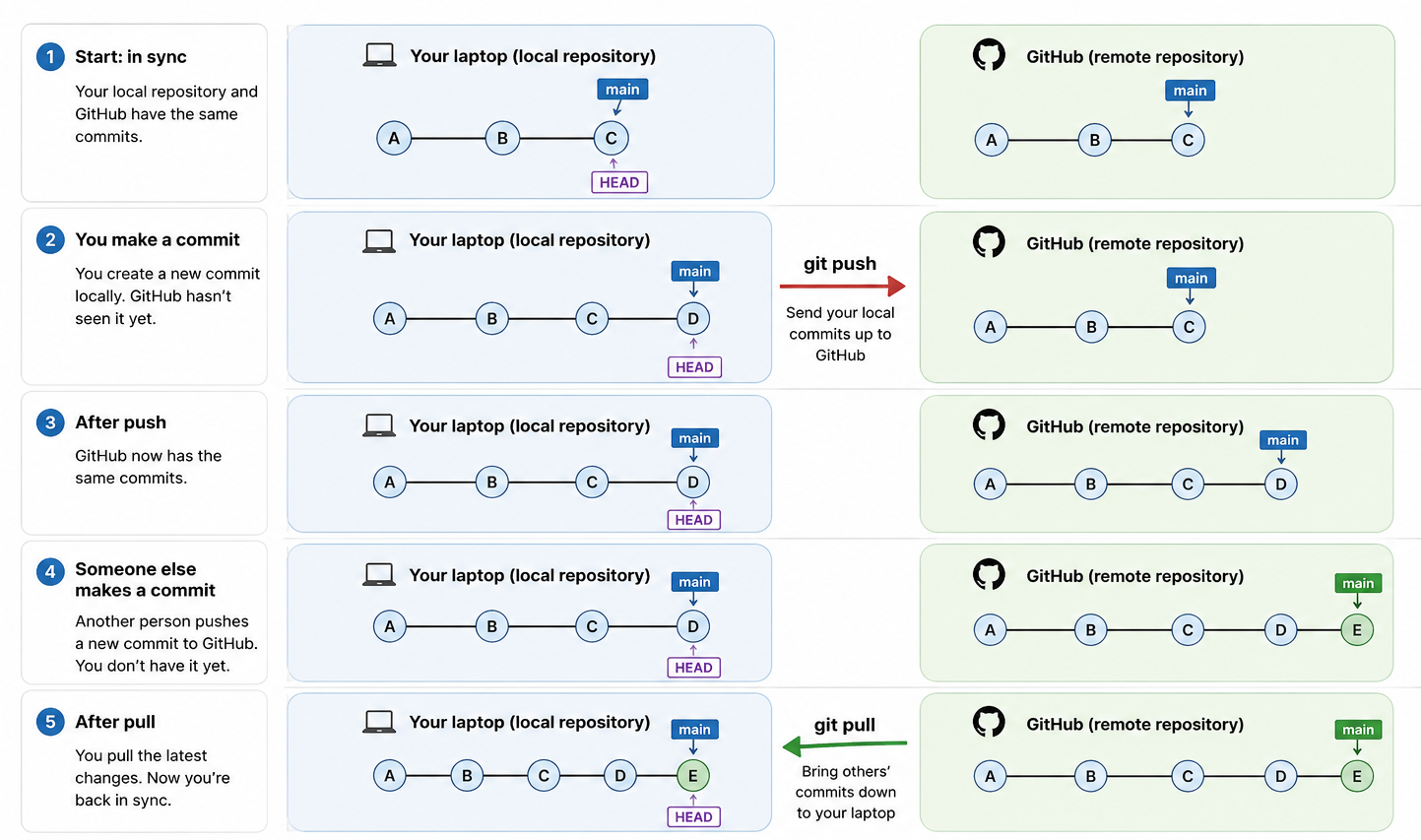
Two copies, kept in sync


Because both sides are real git repositories, syncing is just moving commits between them:


git push

Send your local commits up to GitHub

git pull

Bring others’ commits down to your laptop


Same pointer model as before, just across two machines: pushing moves GitHub’s branch pointer forward to match yours; pulling moves yours forward to match GitHub’s.

Syncing with Github

Nothing leaves your computer until you push


  • git add and git commit are completely local, They don’t require an internet connection
  • Your commits are saved in your local history, private to you
  • Only git push sends them to GitHub
  • Only then can anyone else see them

A typical day with both


git is for the work, GitHub is for sharing the work. A normal session uses both:


  1. Once: git clone a repo from GitHub (or push a new local one up)
  2. All day, offline: edit → git addgit commit, over and over
  3. To share: git push your commits up to GitHub
  4. To catch up: git pull to bring in what collaborators pushed


Steps 2 are pure git, on your own machine. Steps 1, 3 and 4 are where GitHub comes in.

Create a GitHub repository

  • Create a GitHub account
  • Create a new empty repository on GitHub
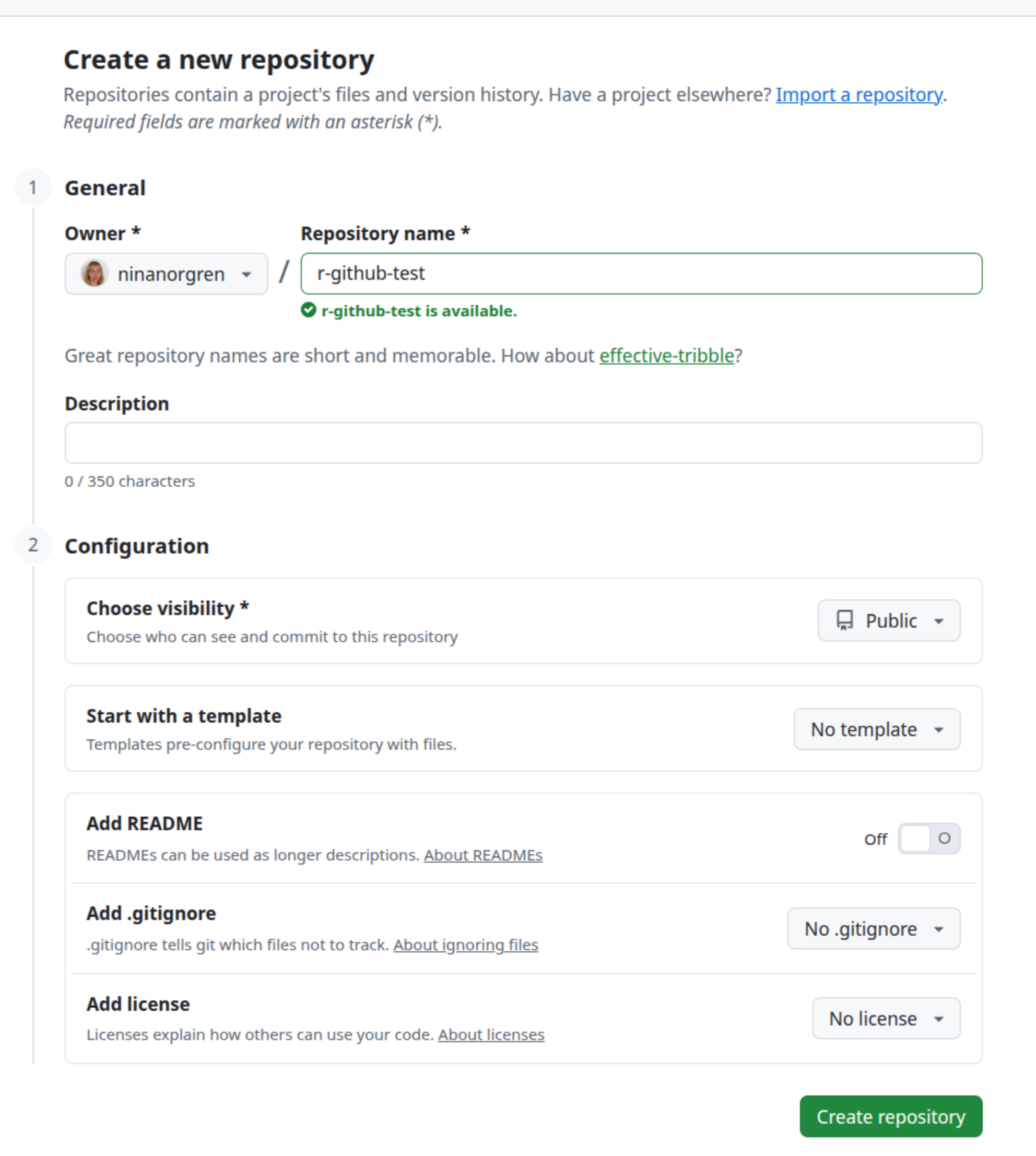
Connect your local repo to GitHub


By convention, the main remote is called origin.

git remote add origin https://github.com/USERNAME/REPOSITORY.git

Check that it worked:

git remote -v


Authenticating with GitHub


GitHub no longer accepts your account password for HTTPS operations.

HTTPS https://github.com/…

Authenticate using a Personal Access Token

Good default for beginners

SSH git@github.com:…

Authenticate using a private key on your computer. The matching public key on GitHub

Convenient after the initial setup

Note

Your GitHub password is still used when signing in to the GitHub website. It just isn’t used by git push over HTTPS.

Git without the command line: Positron

The same git, with buttons


Positron’s Source Control panel calls the exact same git underneath. Every button maps to a command you already know:


In Positron On the command line
+ next to a file git add <file>
Type message + Commit git commit -m "..."
Sync / Push git push / git pull
Branch name in status bar git switch
Clicking a changed file git diff

git the R way: usethis

Let usethis do the setup


The usethis package automates the fiddly bits, all from the R console:

usethis::use_git()          # init a repo + first commit
usethis::use_github()       # create a GitHub repo and connect it
usethis::use_git_ignore(    # add entries to .gitignore
  c(".Rhistory", ".RData")
)
usethis::git_sitrep()       # "situation report": diagnose your setup


Wraps the same git operations you already know, but conveniently packaged for R users.

Forks


Your own GitHub repository, but copied from someone else’s.

When you don’t have permission to push to the original repository


             Original repository
              (someone else's)
                    │
                  Fork
                    ▼
              Your repository


  • A fork is a complete copy of another GitHub repository
  • You own the fork and have full write access
  • The original repository is unchanged
  • You can clone your fork and work as usual

Forks


Your own GitHub repository, but copied from someone else’s.

When you don’t have permission to push to the original repository


Pull requests

A Pull Request (PR) is a request to merge changes from one branch into another

             Your branch (or fork)
                    │
                    ▼
              Open Pull Request
                    │
                    ▼
            Review • Discuss • Test
                    │
                    ▼
                  Merge
  • Compare your changes with the target branch
  • Review the code before it is merged
  • Merge once everyone is happy

A Pull Request doesn’t change anything by itself, it just asks someone to review and merge your changes.

Summary


git local version control
GitHub hosting and collaboration platform for Git repositories
add stage a file for commit
commit commit the staged changes to the local repository
push send your local commits to the remote repository
pull bring commits from the remote repository to your local repository
Branch “copy” where you can test out new ideas
Fork your own copy of someone else’s repository
Pull Request request to merge your changes into a branch

Where to go next


  • Happy Git with R — happygitwithr.com (Jenny Bryan). The definitive R + git + GitHub guide; start here for any setup pain.
  • dangitgit.com — plain-English fixes for “oh no” moments
  • git-scm.com/book — the official git book, online and free
  • git <command> --help — the built-in manual for any command


You won’t remember every command today, and you don’t need to. Remember the basics and look the rest up.